What is an ACAT?
- ACAT stands for Automated Client Account Transfer. It allows you to transfer your account, exactly the way it is currently, from a current broker to a new broker. It only asks for the name of the broker and the broker’s account number. We take care of the rest. The process takes 4 to 8 business days. Generally speaking, we have seen transfers come over closer to 4 business days. Account title and types MUST match to be approved.
Should I select full or partial ACAT?
- A full ACATS transfer moves all of your assets from a third-party broker to your ZacksTrade account. A partial ACATS transfer moves only those assets that you select.
Complete the following steps:
1. Log in to Client Portal and click Transfer & Pay > Transfer Positions.
2. In the Transaction Type list, select Inbound Position.
3. In the Method list, select ACATS.

4. In the Broker Information section, complete all fields to identify the third-party broker who will be transferring the assets. Select the broker from the drop-down list; enter your account number, account title and account type at the selected broker; and enter your Tax ID number. If you’re not sure how to find your Account Number or Broker Number Click Here.
5. To continue with ACATS transfer, select No for Save Broker Information.
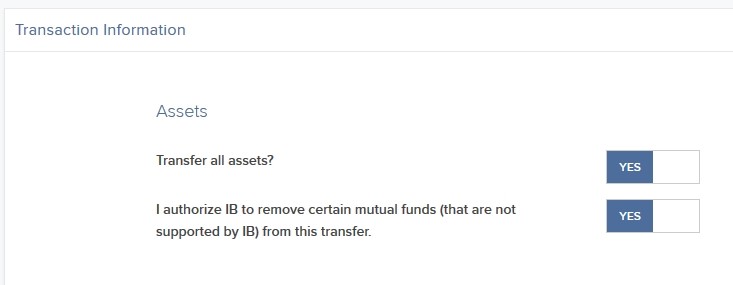
6. In the Transaction Information section, indicate that you want to transfer all assets from the selected broker (a full ACATS transfer) by selecting YES, and then select YES to the authorization option.
7. Click Continue.
8. On the page that appears, type your signature in the Signature field, and then click Continue.
The rest of the page will present details for Partial Transfer only. Use this if you wish to transfer some assets or some cash.
1. Follow steps 1-5 from the above.
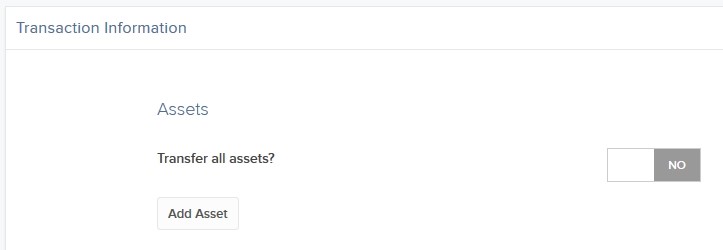
2. To transfer only some assets from your third-party broker (a partial ACATS transfer), select NO, and then click Add Asset.
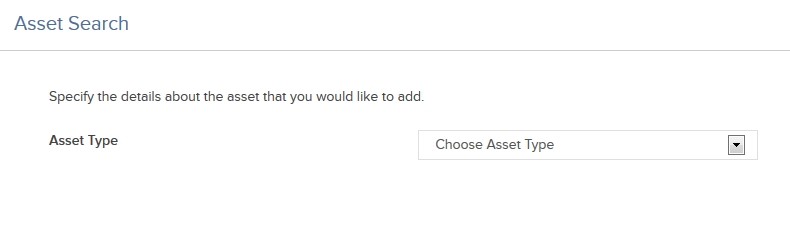
3. In the Asset Search window, select an asset type from the drop-down. For example, select Stock if you want to transfer a stock position.
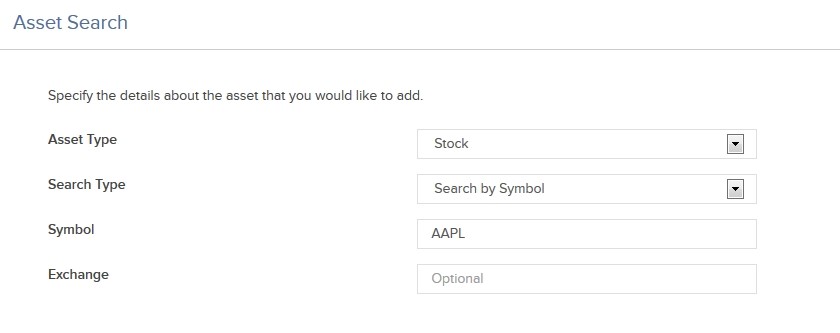
4. Select the Search Type (by Symbol, by CUSIP number or by ISIN number), and then enter the symbol and, optionally, an exchange.
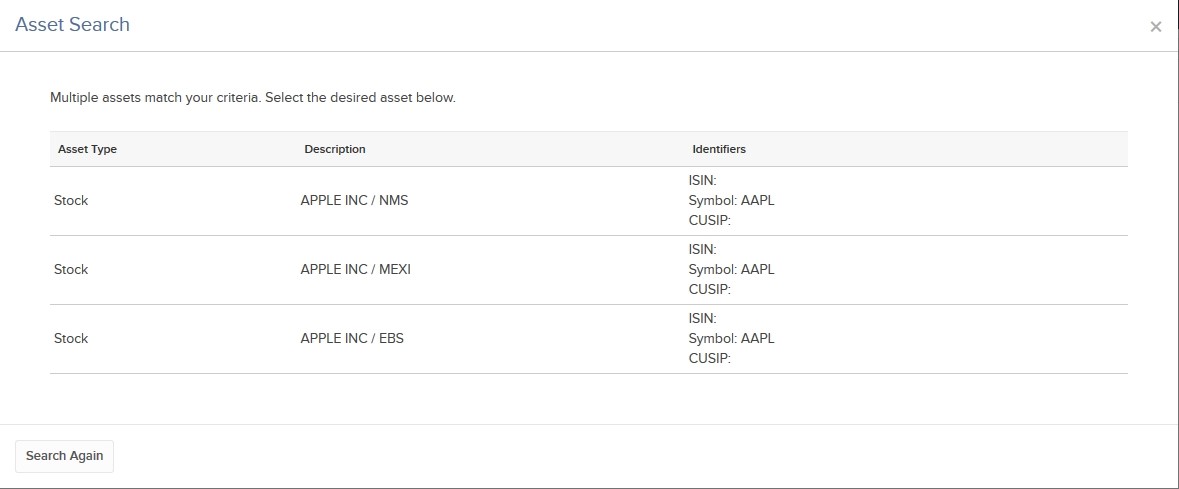
5. The Asset Search window refreshes with a list of matching symbols. Click the one you want to transfer. Click Search Again to search to start a different asset search.
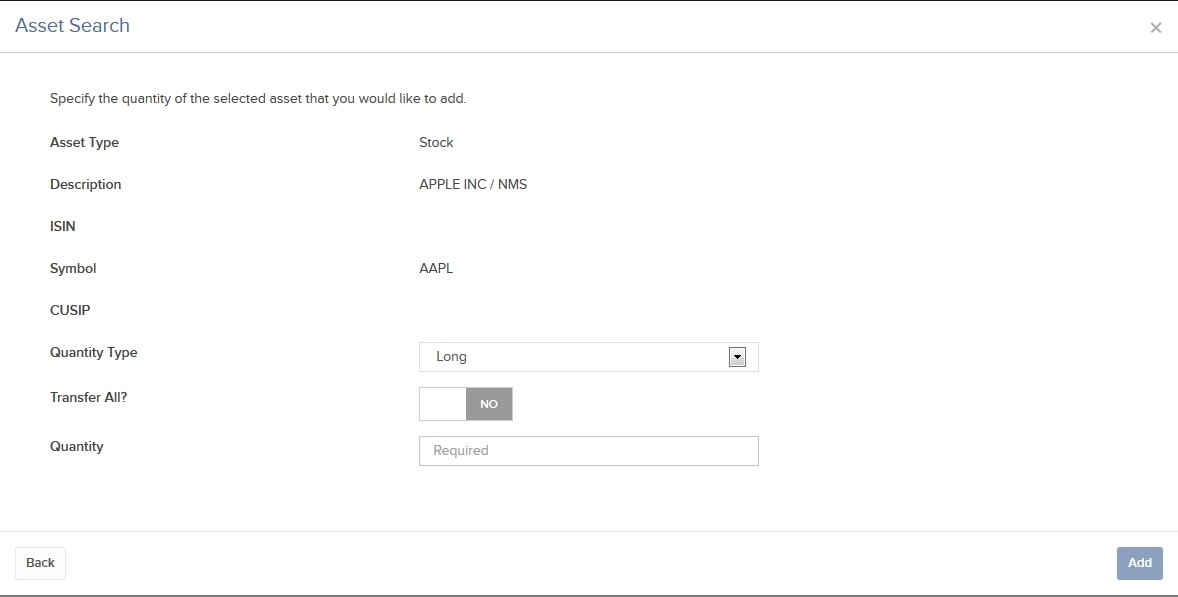
6. Enter the quantity and type of assets (Long or Short) to transfer. Select YES to transfer your entire position of the selected symbol.
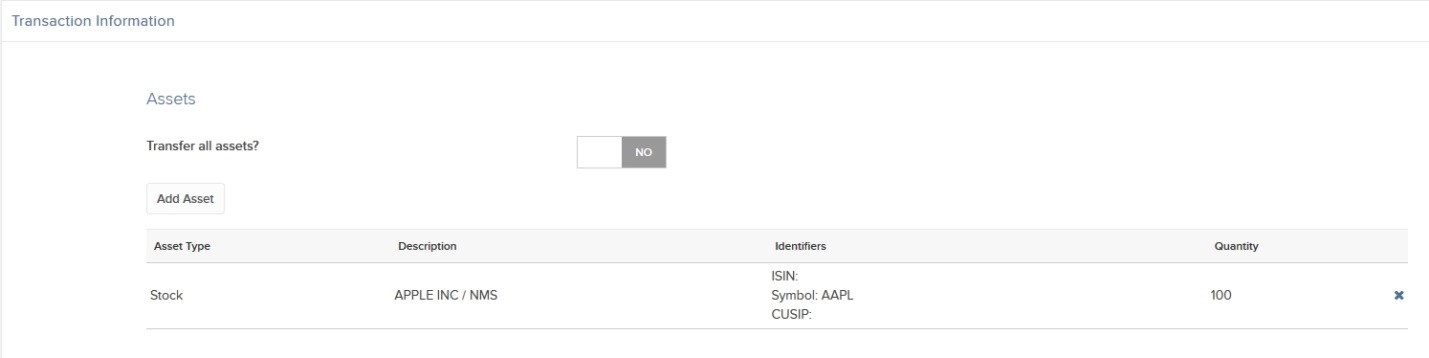
7. Click Add. The assets are added to the list of assets to transfer. You can remove assets from the transfer by clicking the X in the asset list.
9. On the page that appears, type your signature in the Signature field, and then click Continue.
8. Once you have added all desired assets to transfer, click Continue.