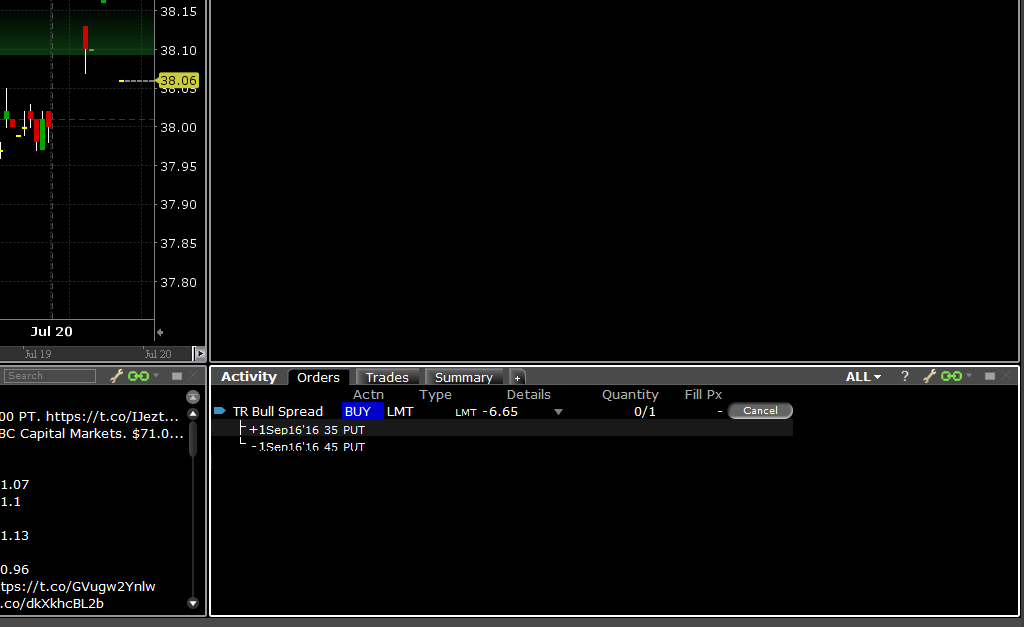
The following instructions are dedicated to the Mosaic layout of ZacksTrade Pro. You will need the Option Chain window.
Complete the following steps:
1. Enter the symbol for an asset you wish to trade. Select Enter on your keyboard and select Stock Smart.
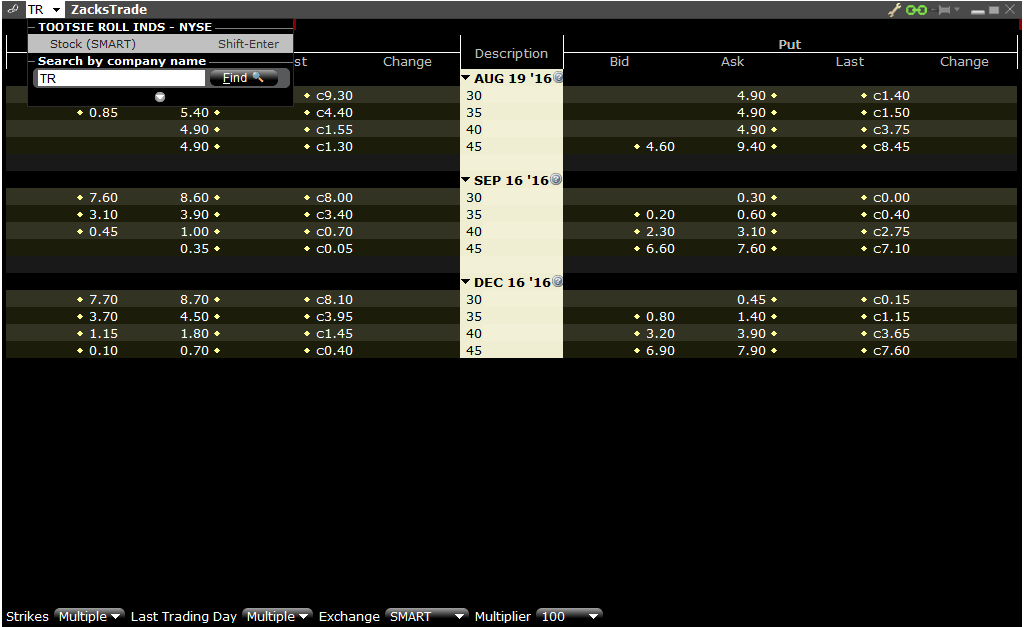
2. Select Strategy Builder. Click on the bid and ask prices to add a leg to the strategy builder pop-up.
3. Once all legs are added, select your order type. If required according to the order type, enter a price.
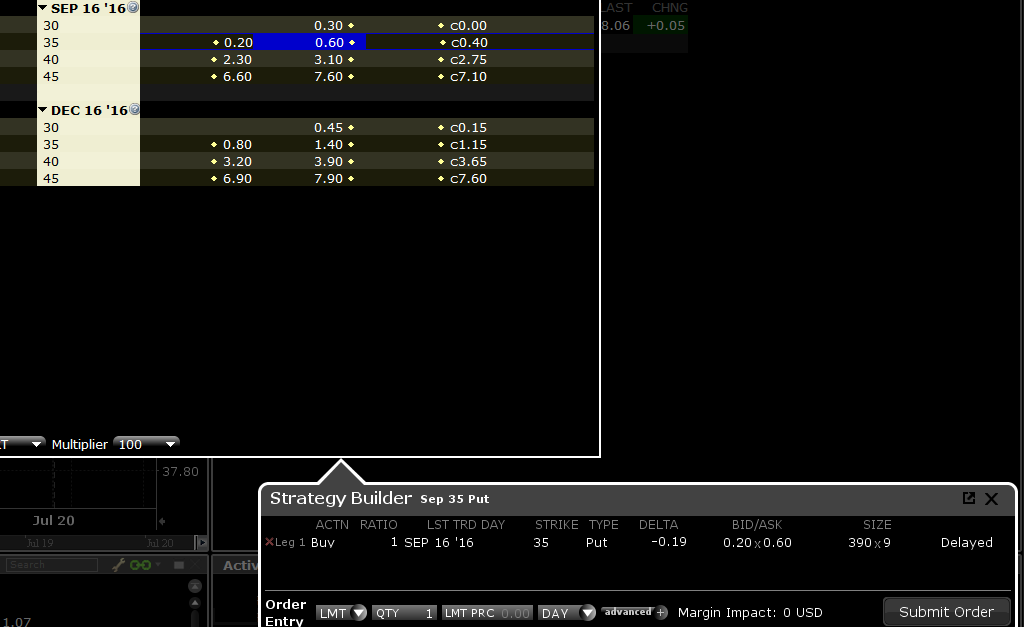
4. Define the quantity using the drop-down or type manually.
5. Select a Time in Force.
6. Review your order instructions and then select Submit.
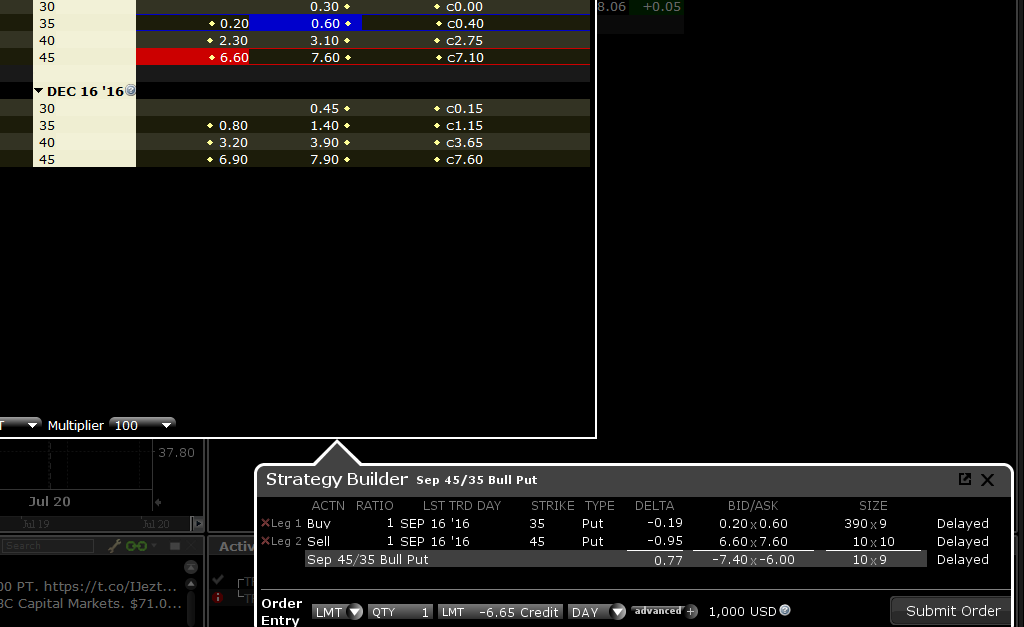
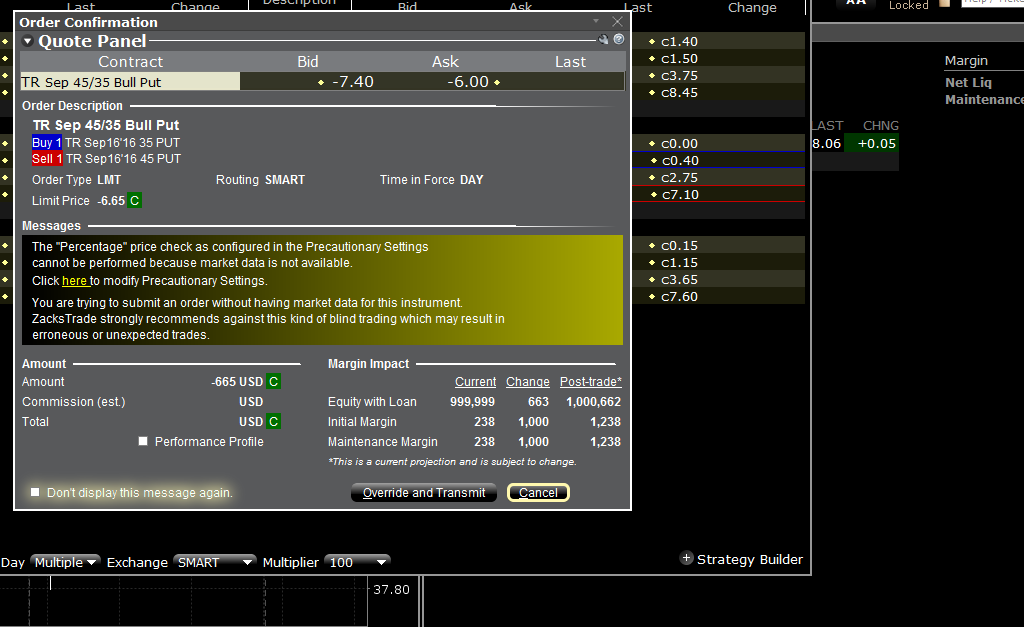
7. The Order Preview screen will show the quote information, your order instructions, Amount/Commission and Total, as well as Margin Impact. If all information is correct, select Transmit to have the order become active.
8. You will then see the order appear under Orders.