The following instructions are dedicated to the ZacksTrader platform.
Complete the following steps:
1. Select the desired product type tab in the Order Management panel.
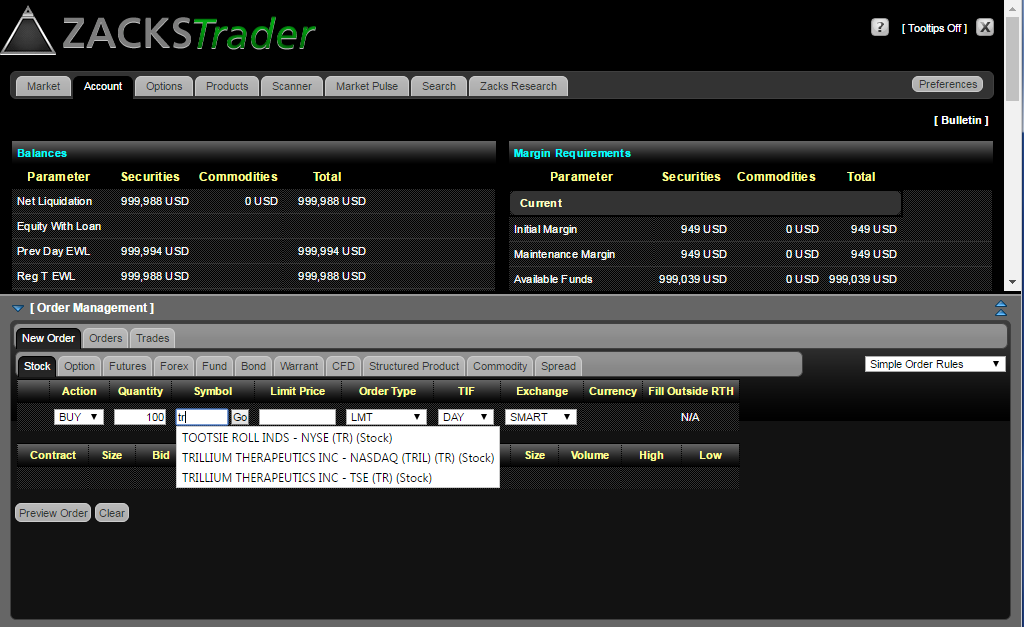
2. Enter the symbol for an asset you wish to trade. Select Enter on your keyboard or GO beside the symbol. Then, select the product type.
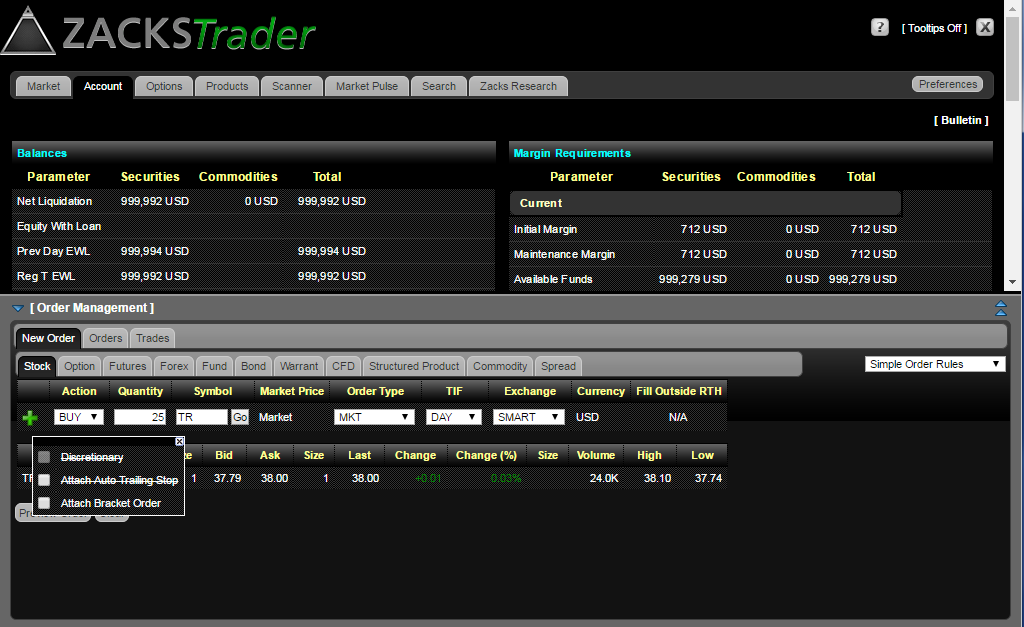
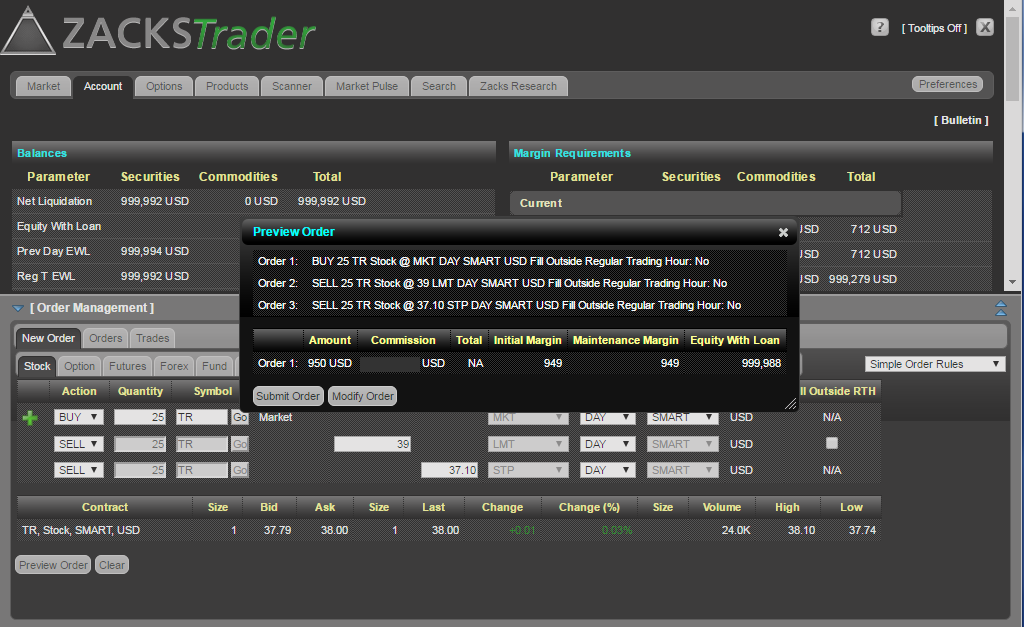
3. Select the green plus sign on the right side. Check off Attach Bracket Order.
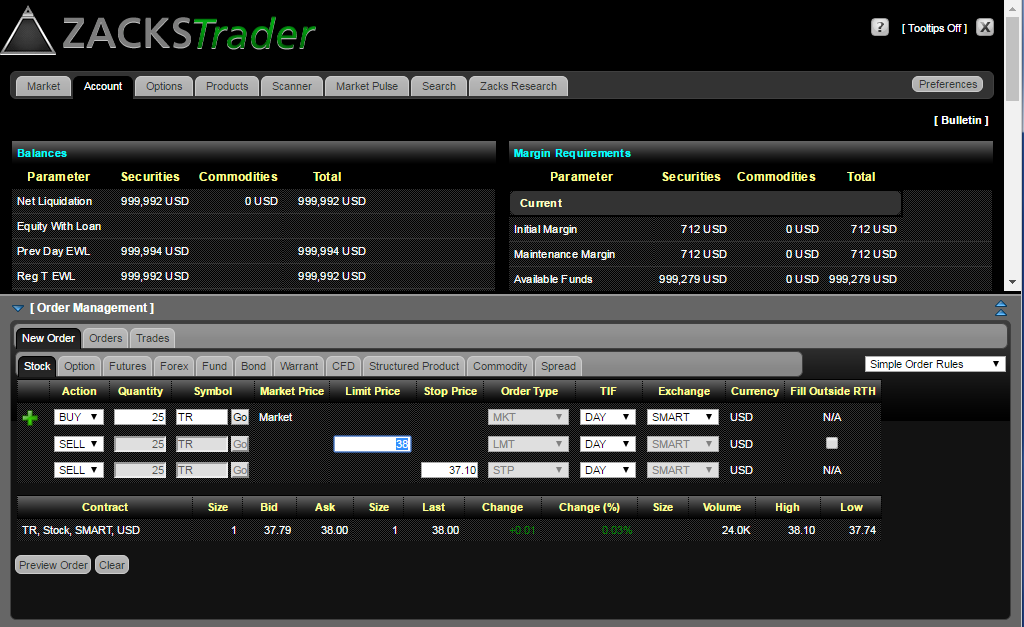
4. Enter order instructions for all three line items: initial order, profit taker and stop loss.
– Select Buy or Sell.
– Define the quantity.
– Select your order type. If required according to the order type, enter a price.
– Select a Time in Force.
5. Review your order instructions and then select Preview Order.
6. The Order Preview screen will show the quote information, your order instructions, Amount/Commission and Total, as well as Margin Impact. If all information is correct, select Submit to have the orders become active.
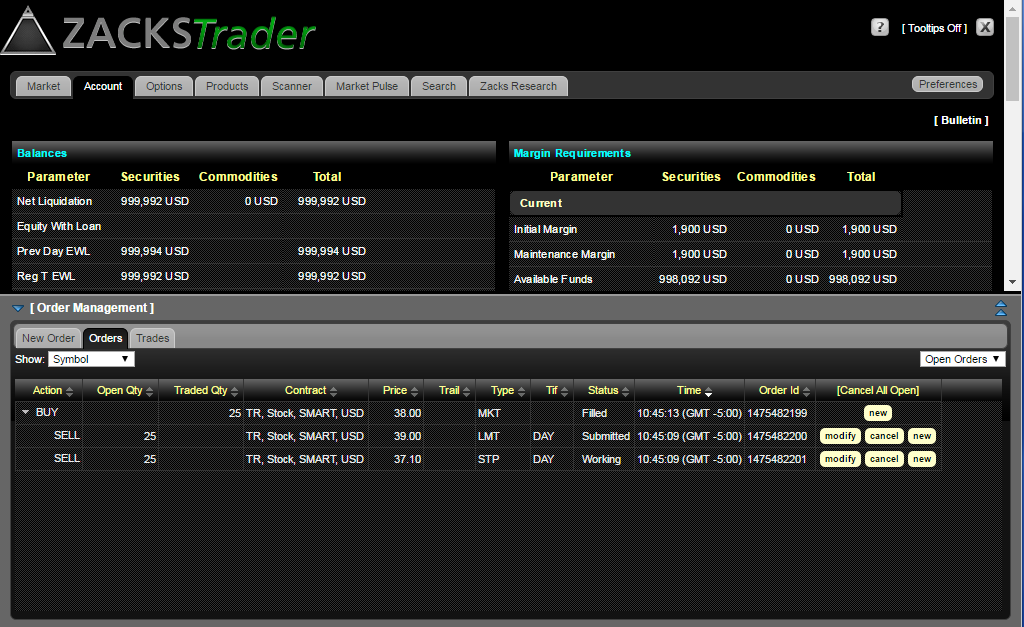
7. You will then see the order with an attached bracket appear under Orders.